> ## Documentation Index
> Fetch the complete documentation index at: https://docs.greed.best/llms.txt
> Use this file to discover all available pages before exploring further.
# Leave Messages
> Configure leave messages for your server
Leave messages let your community know when someone leaves the server. This page explains how to set up, customize, and manage leave messages in Greed.
## Setup
To enable leave messages in your server, run:
```bash theme={null}
,leave setup
```
This will configure leave messages in the current channel.
## Set the Leave Channel
Set the channel where leave messages will be sent:
```bash theme={null}
,leave channel #goodbye
```
## Customize the Leave Message
Set your custom leave message with optional auto-delete:
```bash theme={null}
,leave message Goodbye {user}! --auto_delete 15
```
Auto-delete is optional (1-30 seconds).
## View Current Message
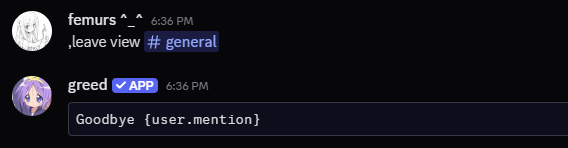
You can check your current leave message configuration at any time:
```bash theme={null}
,leave view (channel)
```
This command will display your current leave message and its settings.
 ## Test Leave
Preview your leave message as it will appear to members:
```bash theme={null}
,leave test (channel)
```
This command will send a test leave message to the configured channel so you can see exactly how it looks.
## Test Leave
Preview your leave message as it will appear to members:
```bash theme={null}
,leave test (channel)
```
This command will send a test leave message to the configured channel so you can see exactly how it looks.
 ## Available Variables
You can find all the variables in the [/resources/variables](/resources/variables) page.
## Available Variables
You can find all the variables in the [/resources/variables](/resources/variables) page.